Most companies start tracking compliance training the same way. Someone opens a blank sheet, adds names, course titles and due dates, and gets on with the job. For a small team, that works.
Then the company grows. New hires arrive, requirements change, and someone asks for proof of who completed safety training last March. The sheet that felt simple becomes a file everyone depends on and few people trust. We’ll look at where spreadsheets hold up, where they struggle, and when it makes sense to move to an LMS.
Why Teams Start With an Excel Training Tracker
We don’t blame anyone for starting here. Excel may already be included in an organization’s Microsoft 365 subscription, everyone knows how to use it, and you can build a tracker in an afternoon.
It also gives you control. You choose the columns, the formulas and the layout. For a small team with a few mandatory courses, an Excel training tracker can do the job. Trouble shows up as headcount, roles and obligations grow.
Where an Excel Training Tracker Starts to Break
A spreadsheet stores information. It doesn’t manage a process. That gap causes most of the problems below.
Weak Audit Evidence
When a reviewer asks about training records, they want to know who recorded a completion, when, and whether anyone changed it later. Excel does not provide a native, tamper-evident audit trail suitable for compliance evidence without additional controls. Anyone with edit access can overwrite a date.
Microsoft 365 and SharePoint may offer version history or change tracking, and that helps. But it isn’t the same as a purpose-built, compliance-oriented LMS audit trail, which is designed to record training activity as it happens.
Version Confusion and Manual Follow-Up
Picture “Training_Tracker_Final_v3_updated.xlsx” sitting in three inboxes. Two managers edit it on the same day, and one version quietly wins. Nobody notices until a certification lapses.
Reminders have the same weakness. Someone has to filter due dates, write the emails and chase people by hand. When that person is away, the chasing often stops.
Errors That Are Easy to Miss
Raymond Panko’s research found that errors are common in operational spreadsheets. In audits using strong methodology, important errors turned up in 91% of 55 spreadsheets. A broader set of nine studies found errors in 84% of 163 spreadsheets. Error rates vary by audit method and spreadsheet complexity, and not every spreadsheet has errors or every error is equally serious. Still, a single broken formula or a sorted column that misaligns rows can mark someone as compliant when they aren’t. Beyond individual mistakes, the bigger risk for training records comes from multiple editors, manual updates, formulas, version confusion and a lack of process controls.
Why Not Use Excel as a Database?
People ask this often, and the short answer is that Excel is built for calculation and analysis, while a database is built to store and relate records reliably.
A well-designed database can enforce rules. It can maintain one record per person, link that record to courses and certificates, control who can change what, and support multiple users at once. Excel lets you type almost anything into any cell, and maintaining reliable links between an employee’s record, role, training history, and renewal date usually requires custom formulas, data models, and ongoing manual administration.
Many teams find that spreadsheet-based tracking becomes difficult somewhere around 50 to 100 employees, especially when multiple managers, locations or job roles are involved. At that point you see duplicate names, mismatched course titles and blank cells that mean different things to different people. Macros and lookups can patch some of this, but every patch needs someone to maintain it. When that person leaves, the file often becomes hard for anyone else to follow.
What an LMS Does Differently for Compliance Tracking
A learning management system is built around the training process, not just the data. Common capabilities include:
Automatic assignment. Mandatory courses can be assigned by role, so nobody has to remember who needs what.
Reminders and escalations. Learners can be nudged before a deadline, and managers alerted when someone is overdue.
Certificate and expiry tracking. Renewal rules can trigger retraining on a set schedule.
Exportable reports. Completion records can usually be pulled in minutes instead of rebuilt by hand.
Role-based permissions. Access to records can be limited to the people who need it, which supports good data-handling practice.
LMS capabilities vary by platform, so organizations should confirm audit-log retention, exportable reports, role-based permissions, renewal rules, integrations and data-security controls before purchasing.
An LMS also doesn’t make a company compliant on its own. It helps you create, retain and retrieve evidence of training completion. It doesn’t replace legal, regulatory or compliance advice. For a deeper look, see our complete guide to LMS for compliance training.
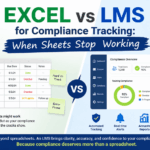
Excel vs. LMS: A Side-by-Side View
| Need | Excel Training Tracker | LMS |
|---|---|---|
| Audit trail | Manual and difficult to evidence at scale | Automated, timestamped completion records, subject to platform capabilities |
| Reminders | Manual emails and follow-up | Automated reminders and escalation workflows |
| Course delivery | Not purpose-built for it | Typically built in |
| Certificate expiry | Formula-based and manually maintained | Tracked, and renewal workflows can be automated |
| Reporting | Manual cleanup and report building | Standardized, exportable reports |
| Scalability | Becomes operationally complex with multiple editors and processes | Designed to manage large learner populations |
| Upfront cost | Low or no additional upfront cost | Subscription-based |
Excel looks cheaper on day one. The hidden costs are administrative time, error correction, chasing completions and audit preparation, and they add up as the program grows.
Signs It’s Time to Move From Sheets to an LMS
Not every company needs an LMS tomorrow. If several of these sound familiar, the spreadsheet is likely costing you more than it seems:
- You spend several hours each month updating and cleaning the tracker.
- More than one person edits the file, and you’ve seen conflicting versions.
- Employees work across multiple locations, shifts or departments.
- You’re preparing for ISO certification or surveillance audits, data-protection reviews, OSHA inspections, or sector-specific compliance reviews.
- You’ve missed, or nearly missed, a certification renewal.
- Leadership asks for training data and you can’t produce it quickly.
How to Move From an Excel Training Tracker to an LMS
Switching doesn’t have to be heavy. We’d suggest a simple path.
- Clean your current data first. Fix duplicate names, standardize course titles and remove outdated rows. A migration is only as good as the file you import.
- List mandatory courses by role. This becomes the assignment logic inside the LMS.
- Choose a platform that fits your size. Check the items in the procurement note above, and skip features you won’t use.
- Start with one department. Pilot with a single team, fix what breaks, then expand.
- Keep the old sheet read-only. Archive it as a reference for historical records until you’ve confirmed everything transferred correctly.
Final Thoughts
Excel isn’t the enemy. It’s a sensible starting point and still useful for quick analysis. But compliance tracking depends on consistent records, timely follow-up and evidence you can retrieve when asked, and a spreadsheet gets harder to run on those terms as you scale.
If you spend more time maintaining your Excel training tracker than improving your training, that’s your signal. A well-chosen LMS can take much of the chasing and report-building off your team, so they can spend that time on training people instead of tracking them.